In-Person Payments
This page covers step-by-step instructions for completing the most common actions made with the Cashflows terminals.
Take a chip and PIN payment
Press the Sale
 button.
Enter the amount to pay.
Tap
 .
.- Ask the customer to:
Insert their card.
Enter their PIN.
Tap
.
The card machine connects to the host system for transaction approval and an Approved or Declined message is displayed.
A copy of the receipt is automatically printed for you.
Ask the customer if they want a receipt. If they do, tap the
to print their copy. Otherwise, tap  .
.
Take a contactless payment
Press the Sale
button.Enter the amount to pay.
Tap
.Ask the customer to hold their card or mobile device close to the contactless symbol of the card machine.
The card machine connects to the host system for transaction approval, an Approved or Declined message is displayed.
A copy of the receipt is automatically printed for you.
Ask the customer if they want a receipt. If they do, tap
to print their copy. Otherwise, tap .
Advanced Tip
Enables the ability to configure how tipping options are presented to the customer.
Important
This is only supported on Android Saturn and Sunmi devices and needs to be enabled by the helpdesk.
Press the Settings icon.
Key in the manager password (default is 1397139).
Select Gratuity Settings.
- Chose the way you want tips to be presented to the customer:
No Tip - no tip option is presented to customers.
Customer Amount - enables customer to enter the amount to tip.
Percentage - pre-define up to 3 percentages to automatically offer, as well as enabling the customer to enter a custom amount.
Fixed Amount - pre-define up to 3 amounts to automatically offer in pence, i.e. £5/10/15 would be 500/1000/1500.
End of day processing
At the end of every business day, you should complete the end of day processing.
Important
If you don’t complete the end of day processing, your most recent transactions may not be processed until the next day. You may not be able to accurately reconcile takings for the day.
Press the Totals button.
Select End of Day banking.
Type the manager passcode (default is 1397139).
Tap
to start end of day processing.Tap
to confirm end of day processing. Today’s transactions are sent to your bank for processing.Tap
to complete end of day processing. A receipt is printed.Tap
to confirm that settlement is complete.
Automatic End of day processing
Enables device to complete the end of day banking automatically, in line with your business hours. Devices will automatically start the end of day process at the specified time. The device will display a 60 second countdown timer before processing and a prompt to run now, defer, or do nothing will appear. Once completed, a banking receipt will be printed. If the end of day fails, the device will show a message on the screen.
Important
Automatic end of day processing is only supported on Android Saturn and Sunmi devices and needs to be enabled by the helpdesk.
Select Settings.
Enter Manager Password (default is 1397139).
Select Fetch Setting, device will contact host and pick up change, if needed, reboot device and attempt again.
Select System Settings.
- Select End of Day Settings - this will prompt the user if they want automatic end of day.
- Enabled - automatic end of day is on (must be flagged on KC).
Select the time for end of day to be completed.
Default is 23:59 as this takes a minute to run.
Merchants can amend the time to select the time that best suits their needs.
Tap
.
Disabled - automatic end of day will not be enabled, users will need to initiate end of day banking manually.
Refund a payment
Press the refund button.
Type the manager passcode (default is 1397139).
Tap
.Enter the amount to be refunded.
Tap
.When prompted, ask the customer to insert, tap or swipe their card. Customers can also present their mobile device. The refund transaction completes and your receipt is printed.
If required, ask the customer to sign the receipt and return it to you.
Tap
to print the customer’s receipt.Give the receipt to the customer.
Otherwise, tap
.
Configure Wi-Fi
Press the Supervisor settings button.
Enter the manager passcode.
Select System Settings.
Select Network Settings.
Select Wi-Fi.
Tap
.Scroll to select your chosen Wi-Fi network.
Enter your network details.
Tap
.Enter your Wi-Fi password.
Tap
to confirm.
Replace the printer roll
Lift flap to open the lid:

Insert the paper roll:
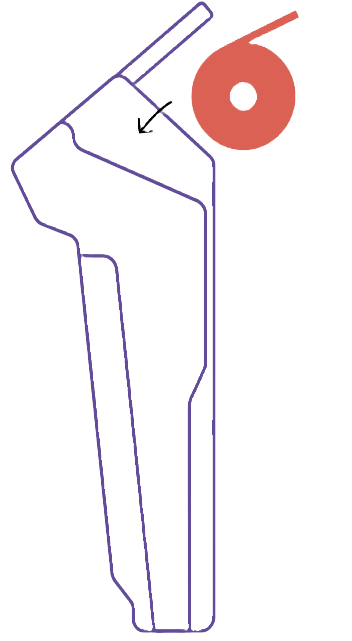
Feed a small amount of paper from the reel:
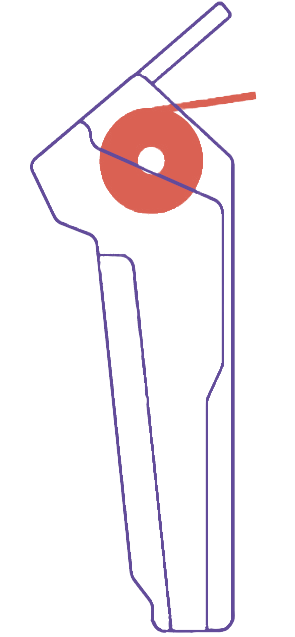
Hold the paper and pull lightly towards the screen:

Close the lid: